A live whiteboard
for your AI agent.

Ask your AI agent to draw — a screen, a flow, a diagram — and it appears in your browser in real time. Edit it, and it follows.

Get Started → Free · no coding required · no installation
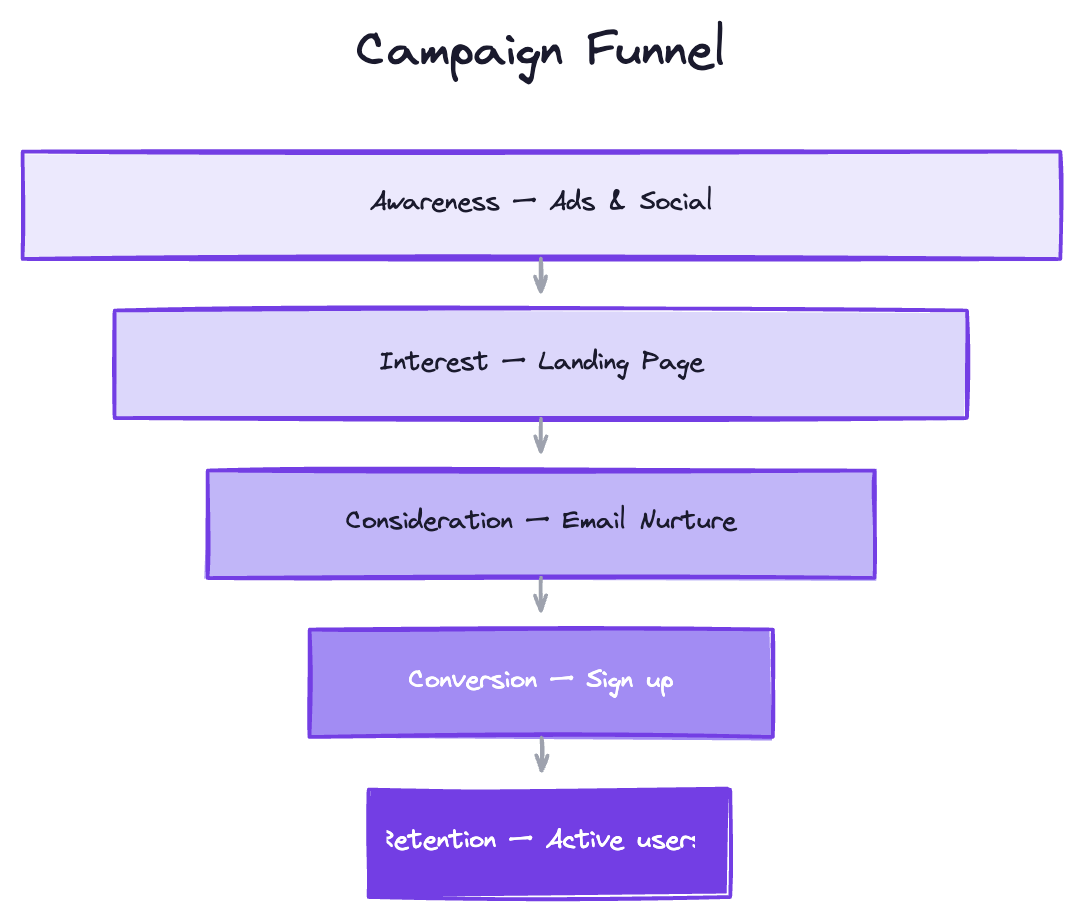
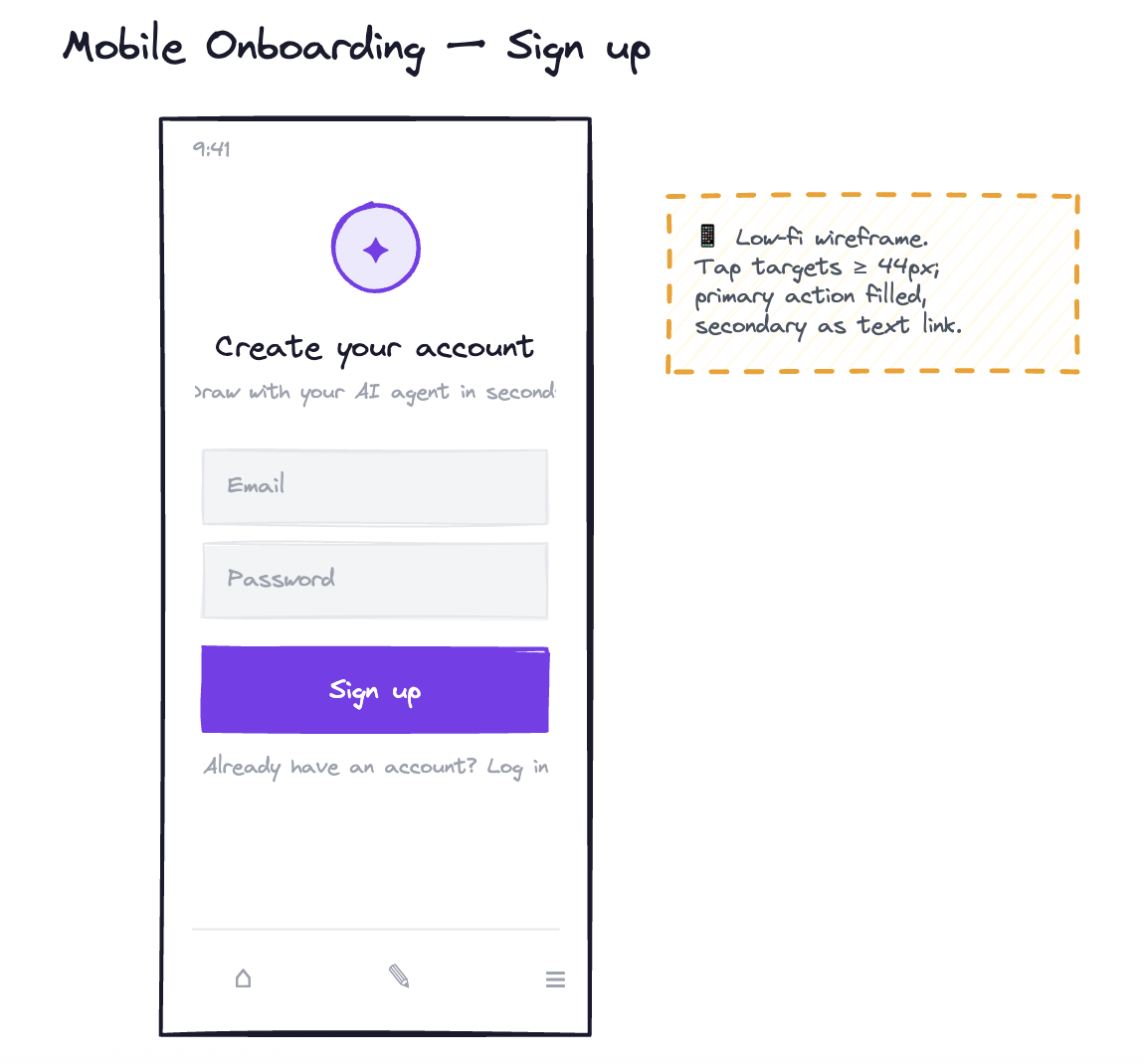
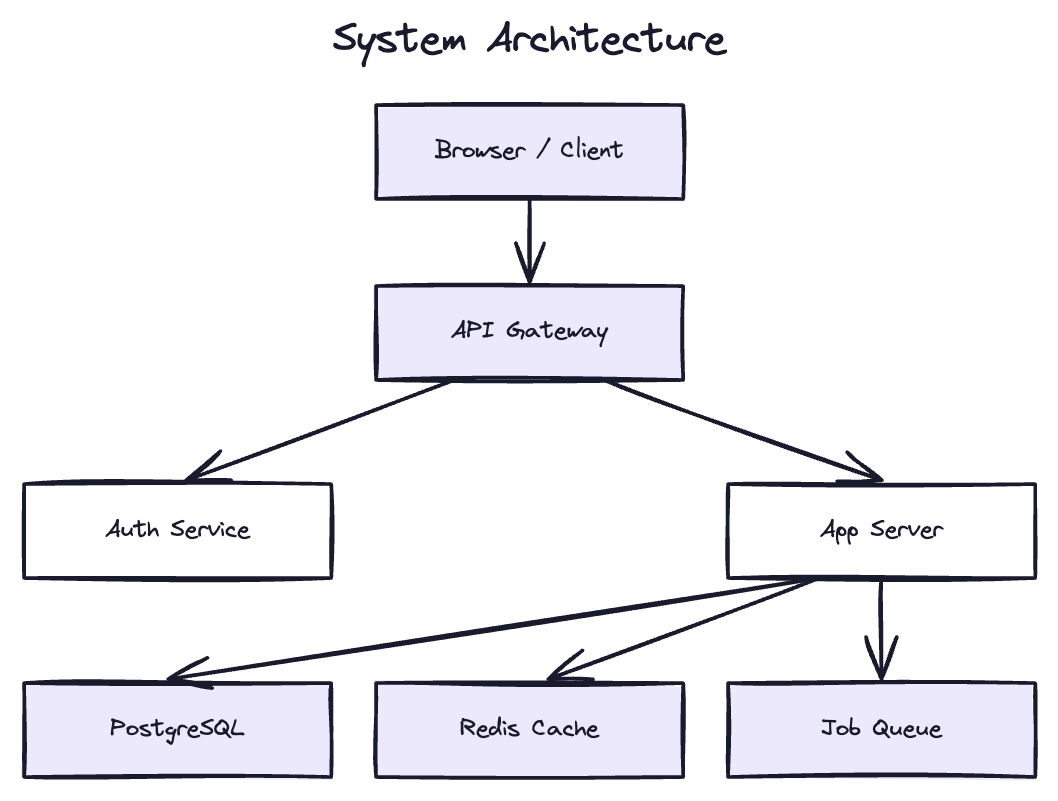
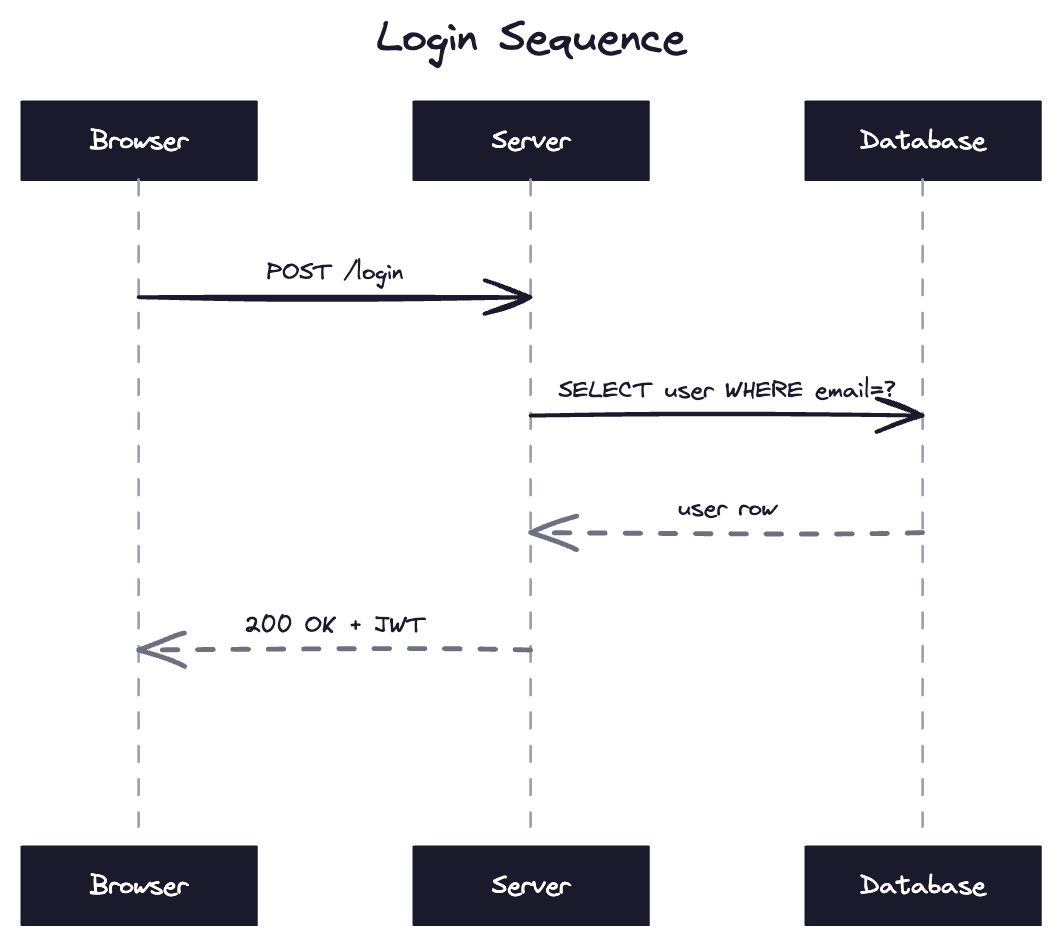
A campaign funnel drawn on FlyingDraw by an AI agent A mobile onboarding wireframe drawn on FlyingDraw by an AI agent A system architecture diagram drawn on FlyingDraw by an AI agent A login sequence diagram drawn on FlyingDraw by an AI agent

Works with any AI agent you're already familiar with

OpenAI Claude Gemini Copilot

Claude Code · Codex CLI · Cursor · Gemini CLI · GitHub Copilot · Windsurf

How it works

1

Connect once

Add FlyingDraw Skills to your project. No installation, no download.

2

Just ask

In your desktop app, console, terminal — anywhere you can talk to your agent.

3

See it live

It appears on your canvas instantly. Edit it — your agent keeps up.

AI agent Live canvas in your browser draws & updates live your edits feed straight back ✎ you edit it yourself

A closed feedback loop: your agent draws, you illustrate changes right on the canvas, and your edits flow straight back to your agent — no copy-paste, no screenshots.

Get started in 4 steps

1

Download the skill file

One small file teaches your AI tool how to draw. Download it and add it to your tool — no install needed.

⬇ Download flyingdraw.md → flyingdraw.com/skill
2

Create your workspace

Sign in with Google to open your own private workspace. This is your board.

3

Connect your workspace

Your agent needs two things — your workspace URL and a token. Get both from your avatar menu (top-right of your board):

  • Workspace URL → click Copy workspace URL, then paste it into the skill file (it replaces the YOUR-UUID placeholder).
  • Token → click Get CLI Token, then paste it into the chat when your agent asks. For your security it's never saved to a file.

In a hurry? Skip the file edit — just paste your URL and token into the chat when your agent prompts you.

4

Just flyingdraw it

Ask your AI agent to "flyingdraw" just about anything — "flyingdraw a login screen" — and watch it appear live on your board.

Using a coding tool? Drop the file in your repo and register it — full per-tool setup on GitHub →

Why we built FlyingDraw

AI agents have gotten remarkably good at thinking — but they can still only talk back in text. The moment an idea turns visual — a screen, a user flow, a system diagram — the conversation breaks down: you paste clunky syntax, copy results into another tool, screenshot it back, and repeat. What makes whiteboarding with a colleague fast — both of you looking at one canvas — is exactly what's missing when you work with an AI agent.

FlyingDraw gives your agent that missing canvas. You say what you want, it draws on a live board in your browser, and you can grab the pen yourself anytime — your agent sees your edits and keeps going. No new app to learn, nothing to export, no copy-paste loop.

Without FlyingDrawWith FlyingDraw
Agent describes a diagram in text or codeAgent draws it on a live canvas
You copy it into a separate diagram toolIt appears in your browser instantly
Screenshot back and forth to iterateEdit the canvas — your agent adapts
Visual context lost between turnsOne shared board you both work on

Built for everyone on the team

Campaign funnel example drawn on FlyingDraw

For a marketer

Map a campaign funnel, storyboard an email flow, or rough out a landing page.

Mobile onboarding wireframe example drawn on FlyingDraw

For a designer

Wireframe a screen, lay out a user journey, or mock a UI component.

System architecture diagram example drawn on FlyingDraw

For an architect

Sketch services, data flows, and deployment diagrams from a prompt.

Login sequence diagram example drawn on FlyingDraw

For an engineer

Generate sequence diagrams, ER schemas, class & state diagrams, and flowcharts — or paste Mermaid or PlantUML and watch it render.

Frequently asked questions

What is FlyingDraw?

A live whiteboard for AI agents — ask your agent to draw a screen, a flow, or a diagram, and it appears in your browser in real time.

Do I need to know how to code to use FlyingDraw?

No. Add the skill file to your AI tool, sign in with Google, and ask in plain language — no terminal required.

Is FlyingDraw free?

Yes — it's free to use, and all you need is a Google account.

What can I create with FlyingDraw?

Wireframes, user flows, flowcharts, org charts, mind maps, and diagrams of all kinds.

How is FlyingDraw different from other diagramming tools?

Tools like Miro, Lucidchart, FigJam, and Excalidraw are built for drawing by hand, and Mermaid or PlantUML need you to write diagram syntax yourself. Standalone AI generators like napkin.ai or tldraw's Make Real produce a one-off image you then copy elsewhere. FlyingDraw is different: it hands the AI agent you already use — Claude Code, Cursor, Codex, or Gemini CLI — a live canvas it draws on in real time, and any edit you make flows straight back to the agent. No new app to learn, no diagram syntax, and no copy-paste — just ask in plain language and refine together on one shared board.

What is an AI skill?

An AI skill is a small instruction file that gives your AI agent a new ability. The FlyingDraw skill teaches your agent how to turn your words into a drawing and put it on your canvas — you add it to your tool once, with no coding and nothing to install.

How does FlyingDraw connect to my AI agent?

A small skill file teaches your agent the drawing format and two API calls to read and write your canvas. It writes the drawing and your browser updates live.

Do I need to install anything or run a server to use FlyingDraw?

No. FlyingDraw is hosted — you just add the skill file to your tool and connect with a token.

How does authentication work in FlyingDraw?

Two layers: Google sign-in in the browser, plus a scoped CLI token (30-day rolling expiry, revocable) that your agent uses. Tokens stay in your chat, never in files.

Can my team collaborate using FlyingDraw?

Yes — switch a workspace to public and anyone signed in with the link can view and edit it together in real time.

Ready to give your AI agent a superpower to draw?

Get started in 4 steps →
🔒 Private workspaces · Google sign-in · No third-party tracking